
Signing in
People sign in to masks, and masks signs them in to your apps. A sign-in has a first step that proves who you are, and often a second step that confirms it.
How a sign-in goes
Section titled “How a sign-in goes”- Enter your Email or nickname.
- Enter your password, or use your passkey.
- If your account has a second step, masks asks Confirm it’s you. Enter the code from your authenticator app, or confirm with your passkey.
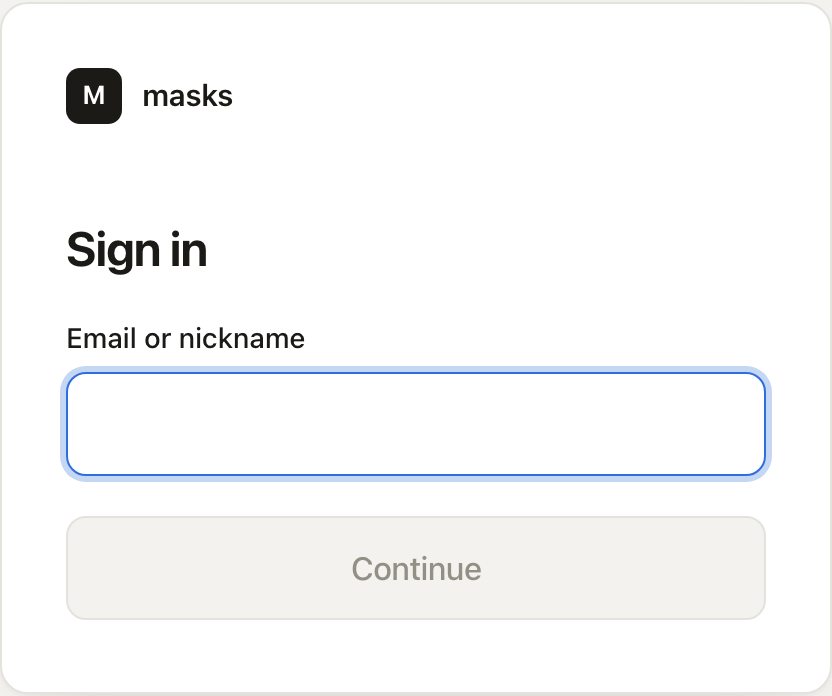
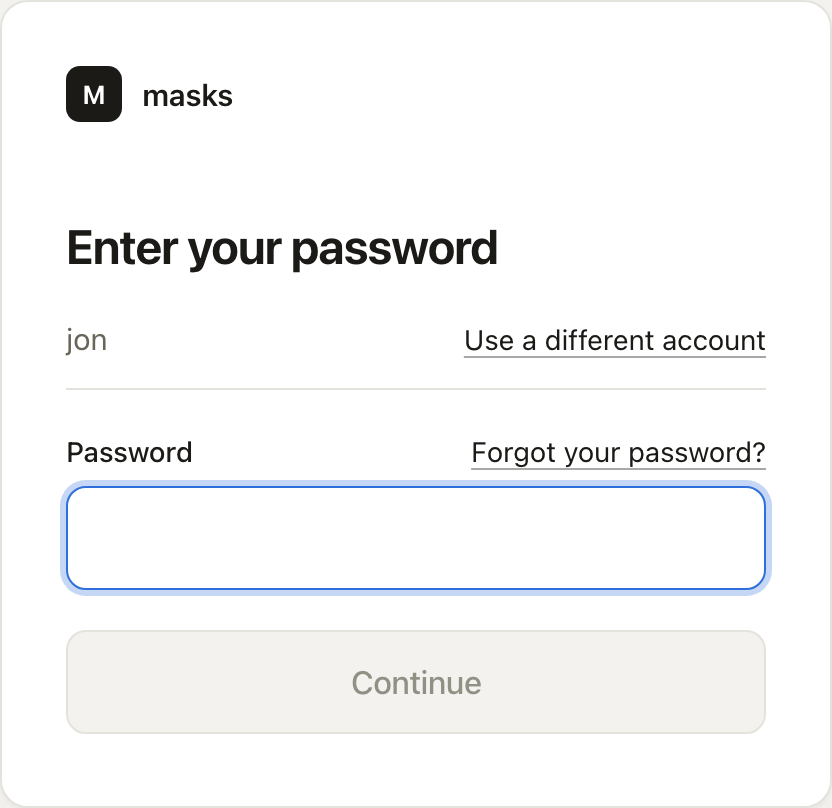
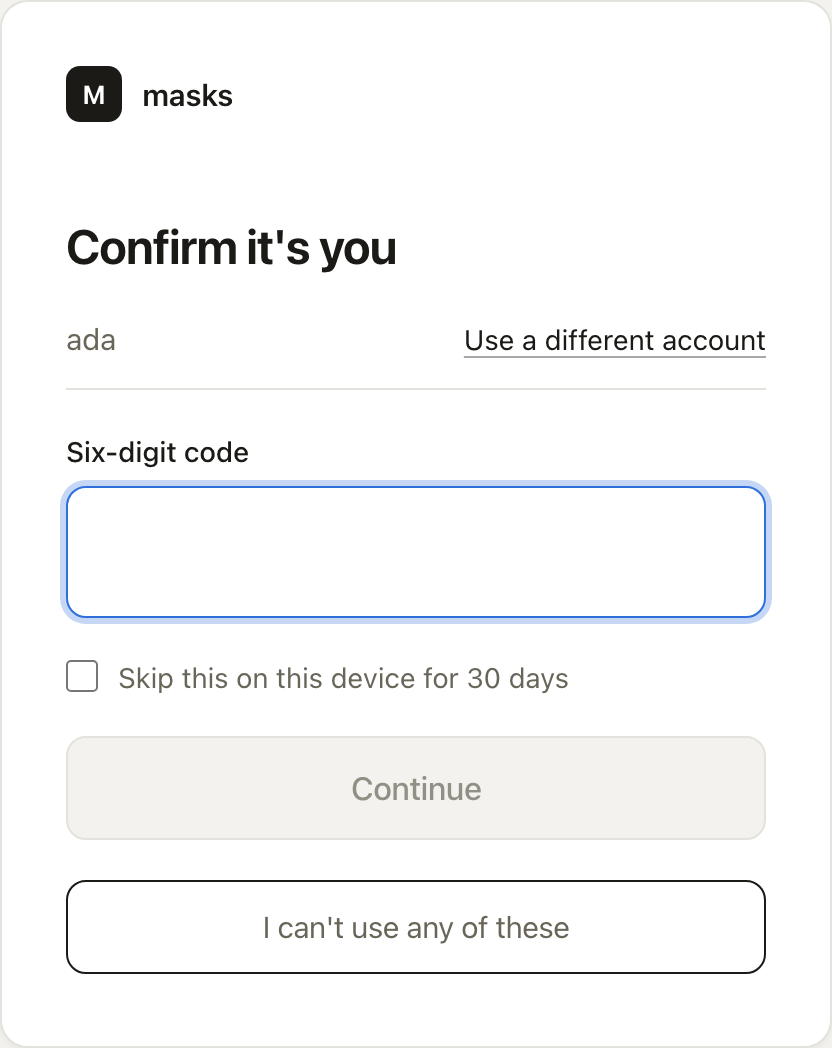
An app that uses masks sends you to these screens the first time, and to Allow what the app may know about you. After that, masks remembers you for 14 days on that browser, and most apps sign you in without a question.
Passkeys
Section titled “Passkeys”A passkey lives on your phone or computer. Your device checks it is you the way it already unlocks, with your face, fingerprint, or PIN. There is no password to type, and a passkey counts as both steps at once.
- To add one, open Passkeys on your account page and choose Set this up. Give it a name, such as My laptop.
- To sign in with one, choose Use a passkey on the sign-in page. In many browsers your passkey also appears as a suggestion in the Email or nickname field.
- A passkey works only on the address it was made on.
Codes by email
Section titled “Codes by email”Some servers let you sign in with a code instead of a password. On the password step, choose Email me a code instead. masks emails a six-digit code to your address. It works for ten minutes, and you can ask for another after 30 seconds with Send another code.
A code sent by email never counts as the second step of that sign-in.
Authenticator apps
Section titled “Authenticator apps”An authenticator app, such as Google Authenticator or 1Password, shows a six-digit code that changes every 30 seconds. It works without a signal.
- Open Authenticator app on your account page.
- Scan the code on the screen with the app, or type the key into it.
- Enter The code the app shows and choose Turn on.
Every manager has an authenticator app or a passkey. Other people have one when the server’s rules ask for it, or when they turn it on themselves.
Backup codes
Section titled “Backup codes”Backup codes are for the day your phone or passkey is not to hand. Each code signs you in once.
- masks makes them when you turn on your first authenticator app, and shows them once. Write them down and keep them away from your phone.
- On the second step, choose Use a backup code and enter one.
- To make a new set, open Backup codes on your account page and choose Make new codes. The old codes stop working.
Skip the second step on your own device
Section titled “Skip the second step on your own device”After a second step, masks offers Skip this on this device for 30 days. Tick it on a device that is yours, and masks does not ask again there for 30 days, or until that device is signed out. Your account page lists each device under Devices, with Sign this device out.
A lost phone
Section titled “A lost phone”When you cannot do the second step, choose I can’t use any of these on the Confirm it’s you screen. masks offers what you can still do:
- Use a backup code, if you kept them.
- Approve from a device you trust. masks shows a code. On a phone or computer where you ticked Skip this on this device, open your account page, find Approve a sign-in, enter the code under Code on the other screen, and choose Approve.
- Ask a manager for help. masks tells every manager, and emails you too, so you notice if someone else asked. Asking again within a day does nothing.
When someone asks for help, a manager:
- Opens Manage this server, then Actors, and chooses the Asking for help filter.
- Opens the person. The top of their page says Asking for help.
- Makes sure it is really them, by a call or in person.
- Chooses Reset second factors, or Dismiss to drop the request.
A reset removes their authenticator app, backup codes, passkeys, and sign-in codes, and signs them out everywhere. Their next sign-in asks them to set up a new second step.
A forgotten password
Section titled “A forgotten password”On the password step, choose Forgot your password?. If the address has an account, masks emails a link headed Reset your password. The link works once and lasts 30 minutes. Setting a new password signs you out everywhere else.
A manager can also start a reset from the person’s page, with Reset password.