
Connect an app from the known list
masks knows how to set up many apps. You pick the app, enter its address, and masks shows you what to paste into the app’s own settings.
Add the app
Section titled “Add the app”- Open Manage this server, then Clients, and choose Add client.
- Under What kind of client, choose A known product.
- Pick the app under Product.
- Enter Its address, the address people open the app at, such as
https://grafana.example.com. - Some apps also ask for Name it uses for masks. Keep
masksunless the app’s settings already use another name. - Choose Add the client.
masks shows a page headed with the app’s name and is ready. It lists every value to enter in the app, under the app’s own name for each one. The secret is among them, and it is not shown again, so copy the values now.
- Its guide opens the app’s own instructions for this kind of sign-in.
- Open it opens the app.
Paste the values into the app’s settings and save them. From then on, the app appears under Your apps on everyone’s account page.
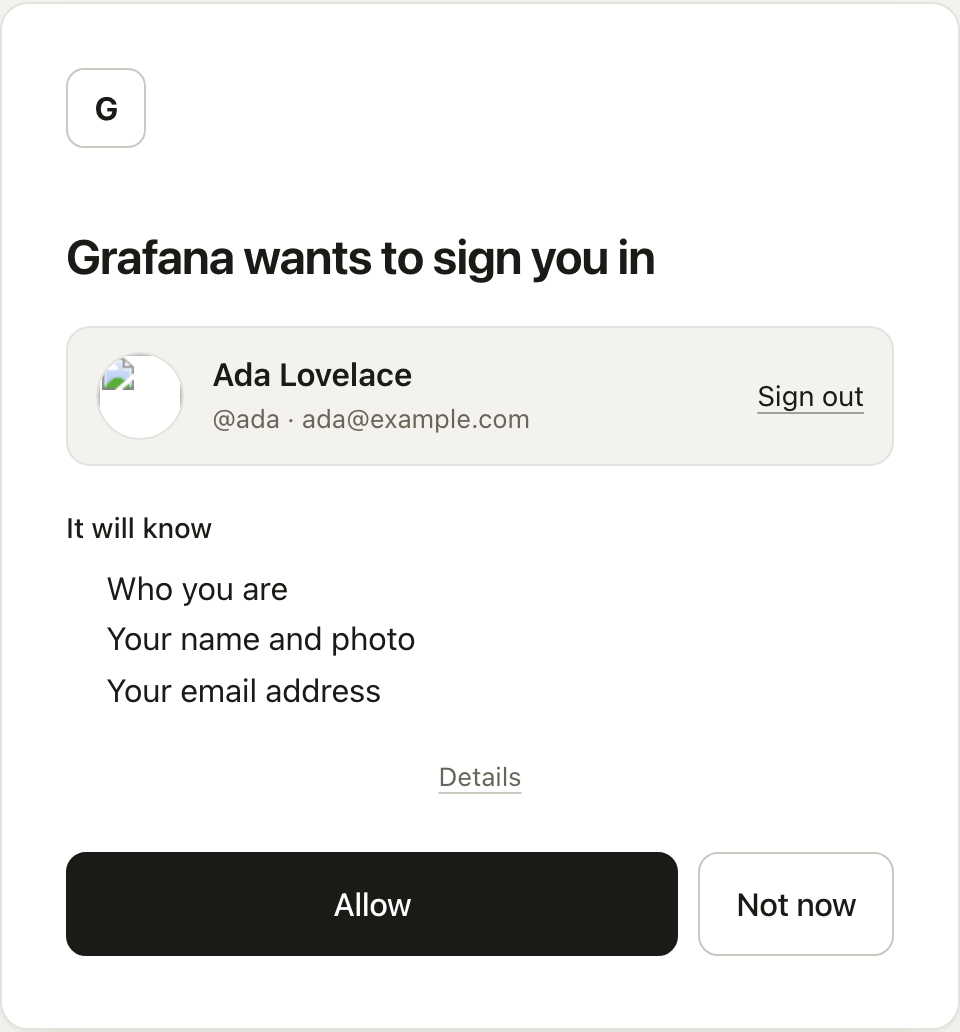
The first time a person opens the app, masks shows what the app will know about them and asks them to Allow it.
What each app needs
Section titled “What each app needs”| App | Needs beyond its address |
|---|---|
| Grafana, Nextcloud, Immich, Outline, Audiobookshelf, Portainer, Vaultwarden, Mealie, Open WebUI, Headscale, Home Assistant (OIDC integration), BookStack, MinIO, Argo CD, Synology DSM | Nothing. |
| Gitea, Forgejo, Paperless-ngx, Proxmox VE, Jellyfin (SSO plugin), Matrix (Synapse) | Name it uses for masks. |
| Wiki.js | Name it uses for masks. Wiki.js shows it in the strategy’s callback URL. Copy it from there. |
| Tailscale | Nothing. Its address is https://login.tailscale.com. See Tailscale. |
| Any app behind Caddy, Traefik, or nginx | Nothing. This one is for operators. See forward authentication. |
Who gets to be an administrator
Section titled “Who gets to be an administrator”Many of these apps read the groups a person is in. In Grafana, Gitea, Jellyfin, Mealie, Open WebUI,
Headscale, Home Assistant, and Argo CD, the settings masks shows make the members of a group called
admins the app’s administrators. In MinIO, name each group after the MinIO policy it should
hold. In every other app, choose the administrators in the app.
To put people in a group:
- Open Settings, then General, then Groups, and add a group called
admins. - Open each person under Actors, open their Access tab, and tick the group.
Who may sign in
Section titled “Who may sign in”By default, everyone with an account can sign in to the app. To limit it:
- Open the app under Clients and open its Access tab.
- Under Who may sign in, tick the groups that may.
Anyone else who tries lands on a page that says the sign-in was refused, with Ask for access. Each request waits under Access requests on the same tab, where a manager chooses Approve or Decline. The person gets an email either way.
Tailscale
Section titled “Tailscale”Tailscale finds a sign-in server through the domain of a person’s email address. So your masks
server has to answer at that domain. A person whose address is ada@id.example.com needs masks at
https://id.example.com.
- In masks, add Tailscale as a known product with
https://login.tailscale.comas its address. Keep the values masks shows. - In Tailscale, start a new tailnet with a custom OpenID Connect provider. Enter an email address at your masks domain, and paste the values.
- Sign in. Each person on your server joins the tailnet with their own account.
Headscale, the self-hosted control server, does not need this. Add it as a known product with its own address.
Apps that are not on the list
Section titled “Apps that are not on the list”An app that is not on the list can still use masks, as long as it supports the same open standard. Setting one up by hand is for developers and operators. See connecting via SDK.