
Set up your first account
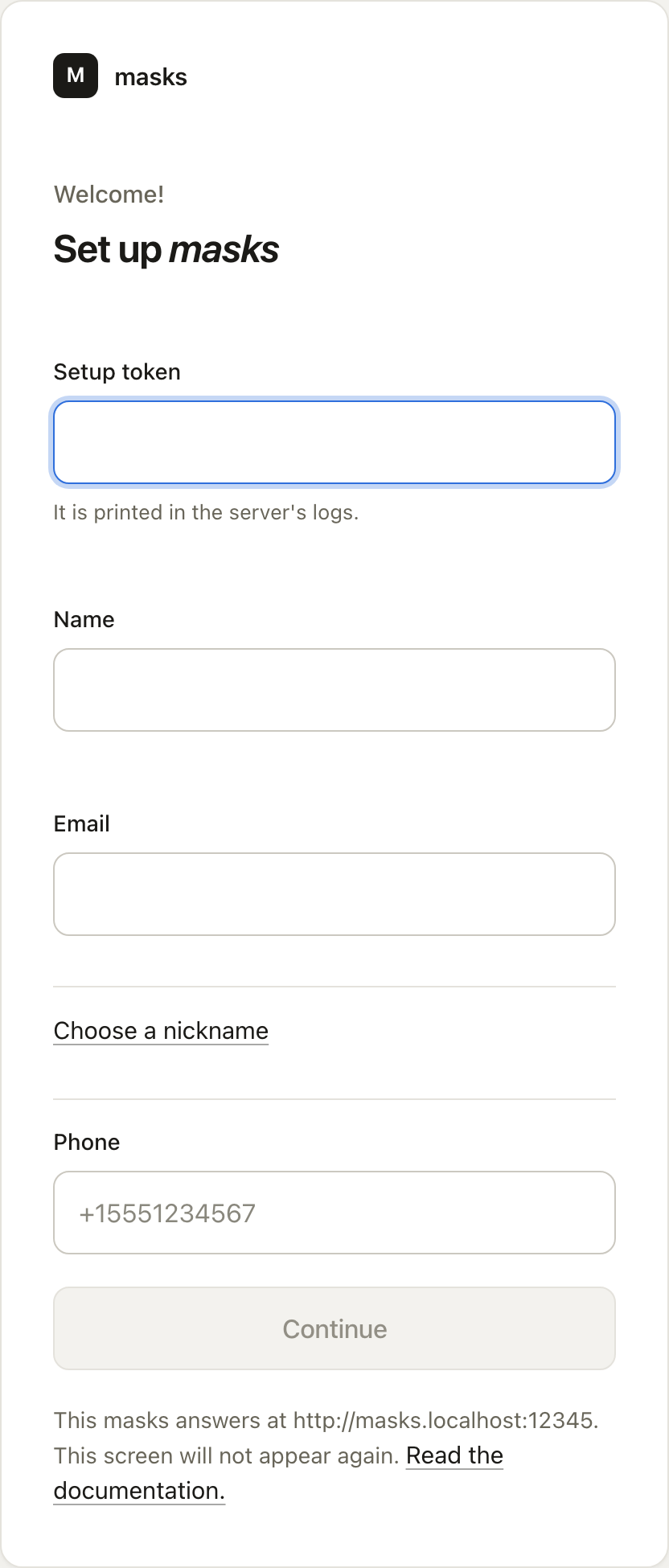
The first time anyone opens your masks server, it shows the Set up screen. The screen has three parts: Identification, Credentials, and Configuration. Only someone who has the setup token from the server’s output can get past it.
Identification
Section titled “Identification”- Enter the Setup token. It is printed in the server’s output. See run masks in one container.
- Enter your Name and your Email. Invitations and password resets for managers go to the address.
- masks makes a nickname from your email address. Other people see it. To pick your own, choose Choose a nickname and enter it.
- Choose Continue.
Credentials
Section titled “Credentials”Under Sign in with, choose A passkey or A password.
- A passkey: choose Create a passkey. Your phone or computer checks it is you with your face, fingerprint, or PIN. There is no password to remember, and you can add one later from your account page.
- A password: enter it twice, under Password and Confirm password. It needs at least 8 characters. masks refuses the most common passwords.
Choose Create the manager. masks makes your account.
Protect your account
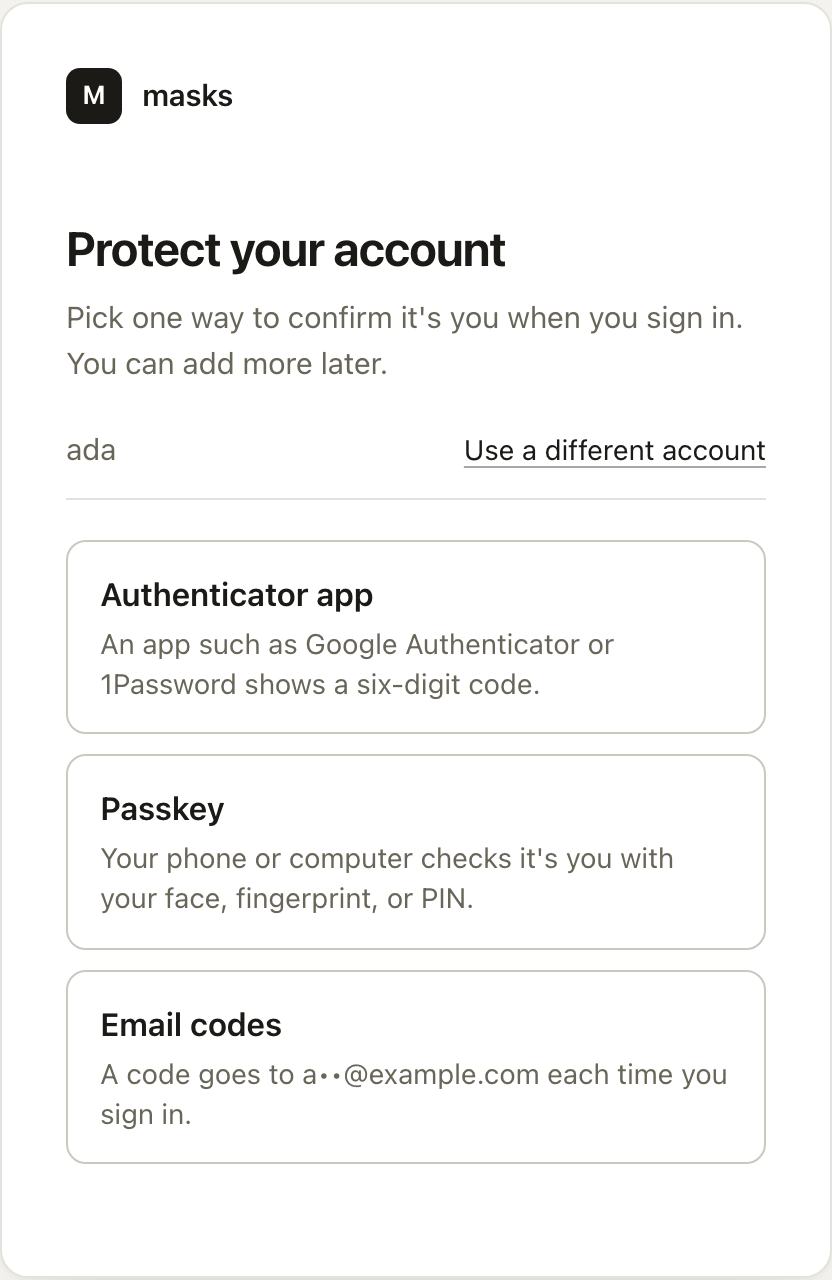
Section titled “Protect your account”A manager always has a second way to prove it is them at sign-in. A passkey counts as both steps at once, so if you made one, masks skips this part.
If you chose a password, the Protect your account screen asks you to pick one way to confirm it is you when you sign in:
- Authenticator app. An app such as Google Authenticator or 1Password shows a six-digit code. Scan the code on the screen with the app, enter the six-digit code the app shows, and choose Turn it on.
- Passkey. Your phone or computer checks it is you with your face, fingerprint, or PIN. Choose Add a passkey.
Once one is on, masks shows your Backup codes. Each code signs you in once if you lose your other way in. Choose Copy them or Download them, keep them somewhere safe, and tick I saved my backup codes. They are not shown again.
Choose Continue.
Configuration
Section titled “Configuration”- Under This server is called, enter a name, such as your family’s or company’s name. It heads every screen and every email masks sends.
- Choose Finish setting up.
The screen does not appear again. You land on your account page. At the top, Manage this server opens the pages where managers work.